

Setup and help for Google Drive downloads.
The one-time Google Cloud setup, step by step, and what to do when a download doesn't behave.
One time only
Set up Google Cloud.
To download from and upload to your Google Drive, RushPull needs a connection to it. You create that connection once, in your own Google account. Google calls it an app, but you're not building an app. It's just a connection between your Drive and RushPull.
The connection needs a key, called a Client ID. RushPull uses that key to sign in to your Drive, and the sign-in stays on your Mac.
Why this setup? The connection is what lets RushPull pause, carry on after a Wi-Fi drop and check that every file arrived complete. Your own Client ID also gives you your own share of Google's limits.
Prefer to watch? The whole setup, step by step, in a 5-minute video.

About 10 minutes, one time only.
Free. Google won't ask for a credit card.
For downloads, RushPull only reads your Drive. Upload adds files only where you choose and can change only what it uploaded. Nothing else in your Drive is ever changed or deleted.
Use any Google account for this. It doesn't need to be the one your footage was shared with.
RushPull walks you through these same steps inside the app, with a button that opens the right Google page for each one. This page is here so you can read it through first, or follow it on a second screen. Where the steps say you@gmail.com, use your own Google address: the app shows yours.
Create a project and switch on the Google Drive API
Click the button below. Google Cloud opens in your browser.
Check the account picture at the top right of Google's page is you@gmail.com.
- If Google asks you to agree to its terms, tick the box and continue.
- Google asks which project to use. If you don't have one yet, create a new project.
- Project name: paste
RushPull. - Leave Parent resource as it is (usually "No organization").
- Click Create. A yellow box about project quota is normal. You can ignore it.
- Make sure RushPull is the selected project.
- Click Next.
- Click Enable.
- Wait. It can take up to a minute. Don't refresh the page.
- You're done when it says You have successfully enabled Google Drive API.
Don't skip this: click Enable and wait until it says the Google Drive API is enabled. Without it, RushPull can't read Google Drive.
Google may add numbers to your project's ID, like rushpull-482913. That's normal, and RushPull works with any project ID.
Set up Google's sign-in screen
This is the page Google shows when RushPull asks for permission. You fill it in once.
Check the account picture at the top right of Google's page is you@gmail.com. The project at the top left should say RushPull.
- Click Get started.
- App name: paste
RushPull. - User support email: pick you@gmail.com from the list.
- Click Next.
- Audience: choose External. Choose this even if you use a work Google account, so RushPull can sign in to any of your accounts.
- Click Next.
- Contact Information: paste
you@gmail.com. - Click Next.
- Tick I agree to the Google API Services: User Data Policy.
- Click Continue.
- Click Create.
Already see an Overview page with no Get started button? This part is done. Go to the next step.
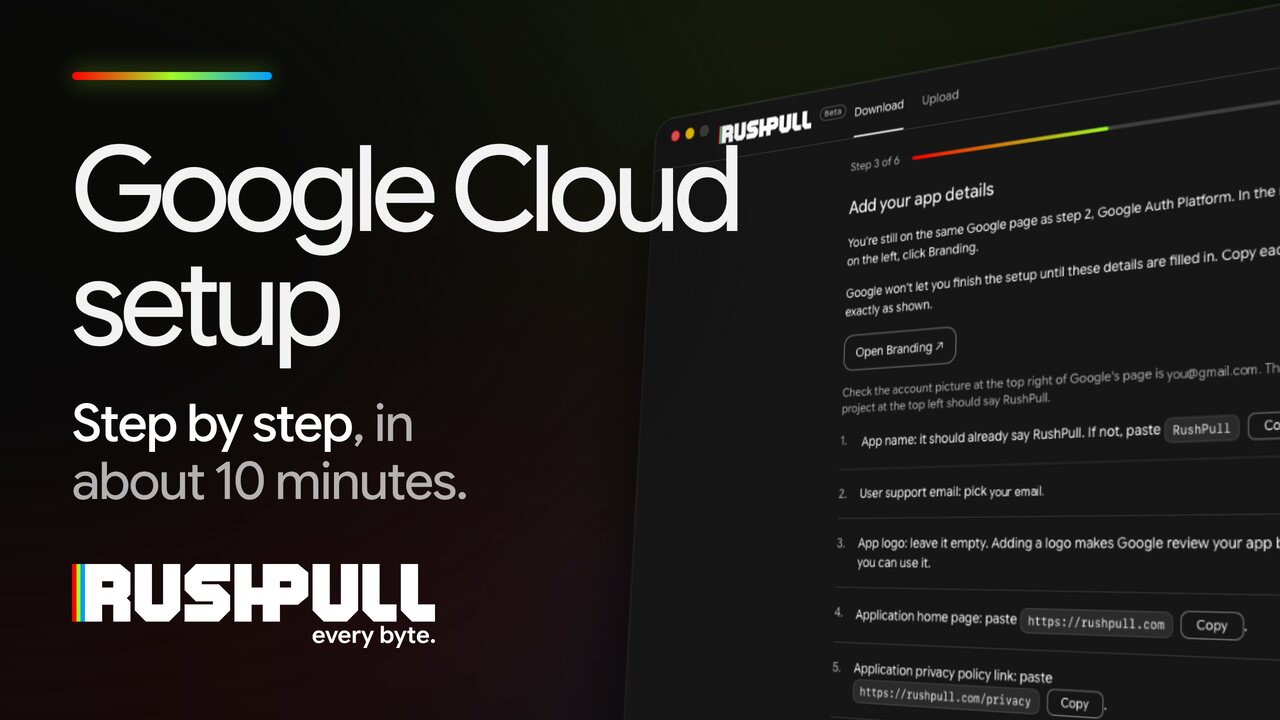
Add your app details
You're still on the same Google page as step 2, Google Auth Platform. In the menu on the left, click Branding.
Google won't let you finish the setup until these details are filled in. Copy each one exactly as shown.
Check the account picture at the top right of Google's page is you@gmail.com. The project at the top left should say RushPull.
- App name: it should already say RushPull. If not, paste
RushPull. - User support email: pick you@gmail.com.
- App logo: leave it empty. Adding a logo makes Google review your app before you can use it.
- Application home page: paste
https://rushpull.com. - Application privacy policy link: paste
https://rushpull.com/privacy. - Application Terms of Service link: leave it empty.
- Authorized domains (Authorised in some countries): click Add domain.
- In the new box, paste
rushpull.com. - Developer contact information: paste
you@gmail.com. - Click Save at the bottom of the page.
Make it permanent
Google starts every new setup in Testing mode. In Testing, RushPull gets signed out every 7 days. One click fixes that.
Check the account picture at the top right of Google's page is you@gmail.com. The project at the top left should say RushPull.
- Under Publishing status, click Publish app.
- Click Confirm.
- Check that it now says In production.
Google may mention "verification". You don't need it. It's for apps used by many people, and this one is only for you.
Create your Client ID
Check the account picture at the top right of Google's page is you@gmail.com. The project at the top left should say RushPull.
- Application type: choose Desktop app.
- Leave the name as it is.
- Leave Use this client for an AI-powered agent unticked.
- Click Create.
- Google shows your Client ID and Client secret. Click Download JSON.
- Save the file anywhere, such as your Desktop.
Google shows the Client secret only once. Download the file before you close that window. If you missed it, open the client in Google Cloud and click Add secret to make a new one.
Check it works
In RushPull, on the last screen of the setup: drop the JSON file you downloaded, or paste the two codes.
- Client ID — ends in .apps.googleusercontent.com
- Client secret — starts with GOCSPX-
- Click Test. RushPull checks with Google, then says ✓ It works, or Test again if something isn't right.
- Click Save and add a Google account.
Watch this step · 4:08 (opens the video on YouTube, in a new tab)
After the setup
Before you sign in to Google.
Google will say it hasn't verified this app. That's normal.
The app is the connection you made in Google Cloud setup, so Google hasn't reviewed it. It's safe to continue.
- Right after Google Cloud setup: choose a Google account. The one you just used to set up Google Cloud is the easiest place to start. Adding another account later: choose the Google account you want to use.
- Google says it hasn't verified this app. Don't click the blue Back to safety button. Click the small Advanced link at the bottom left, then the small Go to RushPull (unsafe) link that appears below it.
The "developer" Google names is the email you used for Google Cloud setup: you made the connection.
1. Advanced 2. Go to RushPull (unsafe) - Google may show a tick box for Google Drive — if it does, make sure it's ticked. If Google shows it See and download all your Google Drive files
When something goes wrong
Most of it fixes itself.
RushPull treats interruptions as pauses, not failures. These are the ones that need you.
Why does RushPull say the Google Drive API isn't switched on?
The Google Drive API isn't switched on in your Google Cloud project. It usually means Enable was skipped in step 1 of the setup.
Click Turn on Google Drive API in RushPull, click Enable on Google's page, wait a minute, then click Try again in RushPull. You don't need to sign in again or redo the setup.
Why does RushPull say it can't read Google Drive?
The Google Drive box on Google's sign-in page was left unticked. Google leaves it empty, and without it RushPull can't read your Drive.
Click Sign in again in RushPull. On Google's page, tick See and download all your Google Drive files, then click Continue.
This isn't the same as the Google Drive API being switched off: that one is fixed in Google Cloud, this one on Google's sign-in page.
Why can't my account see that Drive link?
RushPull checked the link and found nothing. Almost always this means the folder was shared with a different email address than the account you've picked in step 1.
- Look at the email the Drive link was sent to, and pick that account in step 1. If it isn't in the list, add it with + Add Google account.
- If it was shared with a work address, make sure you're adding that work account, not your personal Gmail.
- If the link is meant to be open to anyone, check it hasn't been turned off or the folder moved. Opening the link in your browser will tell you.
- Otherwise, ask whoever sent it to share it with your address, or to turn on "anyone with the link".
What do I do when Google limits a file?
Google limits how often a popular shared file can be downloaded. When that happens, RushPull doesn't fail the download: it keeps what it has, lets the other files get on with it, and keeps trying that one in the background, waiting a little longer each time.
There's nothing to do but leave it running. Those files aren't charged against your GB.
If a file is still limited the next day, ask whoever owns it to make a copy and share that instead — a fresh copy has its own, untouched limit.
What happens when Google's daily limit is reached?
Google lets each Google Cloud project download up to 1 TB a day (projects made from May 2026). It's the project's limit, not one Google account's: every account that signs in to RushPull with the same Client ID shares it. Google's Drive API limits.
When it's reached, RushPull pauses, keeps everything already downloaded, and carries on by itself when Google's limit resets, at midnight Pacific Time. You can leave it open, or quit and click Resume later.
What happens if the drive is unplugged or goes to sleep?
RushPull pauses, keeps every number, and waits. Plug the drive back in and it checks what's there and carries on by itself, from the same place.
If you paused on purpose, it stays paused and tells you the drive is back — click Resume when you're ready.
While it's pausing, RushPull may say it's finishing saving to the drive. Let it. It never asks you to unplug a drive that might still be writing — and when you do unplug one, eject it in Finder first.
Can RushPull save to a network drive or NAS?
Yes, from version 0.9.0-beta.21. Connect the network drive in Finder first: choose Go › Connect to Server, type the server's address and click Connect. Then click Choose… under Save to and pick a folder on it.
On a network drive, RushPull reads each file back once it's saved and checks it against Google's own fingerprint, so a copy the server didn't keep in full is downloaded again. If the connection to the server drops, RushPull pauses and keeps everything it has. Click Reconnect (from version 0.9.0-beta.22) and it connects to the server again and carries on where it stopped. If the network drive isn't connected when you start, click Reconnect, then Download. Uploads from a network drive get the same button. Step by step
Why is my Google Drive download so slow?
RushPull tells you which of the two is holding things up, because the fix is different.
- "… is writing slowly", with your drive's name — the drive can't take the data as fast as it arrives. USB sticks and SD cards are the usual culprits. RushPull automatically tries fewer files at once to see if that's quicker, and keeps whichever is faster. A proper external drive will be several times quicker.
- Nothing said about the drive — then it's the connection, and the speed you see is the speed you've got. It will keep going, and you can close the lid or leave it overnight.
A USB 2 connection is also flagged under Save to. Moving the same drive to a USB 3 port, or using a different cable, often doubles it.
Why can't this drive store files over 4 GB?
The drive is formatted as FAT32, which can't hold a single file larger than 4 GB — and camera files often are. This is a limit of the drive's format, not of RushPull.
RushPull asks before it starts, and gives you two ways out:
- Download just the files that fit, and get the big ones onto another drive.
- Use a different drive.
To keep using this drive for big files you'd have to reformat it as ExFAT, which erases everything on it. Copy anything you want off it first.
Why can't RushPull make the folder?
RushPull tells you which of these it is:
- macOS hasn't given permission for RushPull to write there — there's a button that takes you straight to the right settings page.
- RushPull updated while it was open — quit it and open it again, and macOS is happy.
- The drive is read-only, or full — that one's the drive, not the app.
Uploading
Sending files to Google Drive.
Upload is in the same window, in its own tab, with the same Google account and setup.
How do I upload a folder to Google Drive?
Click Upload at the top of the window. Choose the Google account (step 1), drag files or folders onto the window or click Choose… (step 2). In step 3, type a name for a new folder, which goes in My Drive › RushPull uploads, or paste a Google Drive folder link to upload straight into that folder. Your folders inside are kept as they are. Then click Upload.
A folder link works for someone else's folder if you're an Editor there, and for a shared drive. The files use your own Google storage, even in someone else's folder, and nothing already in the folder is changed: a different file with the same name goes in beside it as “name (2)”. More on uploading into someone else's folder
You can pause any time, quit, or lose the Wi-Fi: RushPull carries on from where it stopped, and nothing is uploaded twice. Hidden files are left out, and RushPull asks before uploading anything that looks like a private key or password. Uploading is free during the beta.
Why does RushPull ask to allow uploads?
For downloads, RushPull asks Google only to read your Drive. Uploading needs one more permission, so the first time you open Upload with a Google account, click Allow uploads.
Google shows a tick box for each permission: tick both, or Select all. The second one, See, edit, create, and delete only the specific Google Drive files you use with this app, lets RushPull add files to your Drive and see and change only the files it uploaded itself. It never touches anything else in your Drive. There's nothing new to do in Google Cloud: it's the same setup.
What happens when I reach Google's 750 GB a day?
Google lets each account upload 750 GB a day. Before you start, RushPull says when an upload is bigger than that, and how much of it waits until tomorrow.
When Google stops accepting files, the upload pauses by itself and says when it continues. Nothing is lost: RushPull carries on by itself, about 24 hours after the limit was reached. Leave RushPull open. More about the daily limit.
What if my Google Drive is full?
RushPull checks your Google Drive's space before an upload starts, and says if there isn't room and how much is needed. Free up space in Google Drive, or get more storage from Google, then try again.
If Drive fills up during an upload, RushPull stops and says Google Drive is full. Everything already uploaded stays. Free up space, then click Resume.
Does cancelling an upload delete what's already in Drive?
No. RushPull forgets the rest of the upload, and the files already uploaded stay in Google Drive.
If you choose the same files again later, Continue into the existing folder sends only what's missing, and Upload as a new copy makes a second folder beside the first. When files on your Mac change after an upload, RushPull says so while it's open, and Upload changes sends only the new and changed ones. It never deletes anything in Drive.
How do the people I share it with get the files?
Click Share…, during the upload or after it. Choose who can open the folder (anyone with the link, or only the people you add), then email it from RushPull (Google sends the email from your account) or copy the message and send it your way. Sharing is read-only: they can open and download the folder, not change it.
They can download it straight from Google Drive, or with RushPull, which gets everything in one go and checks every file arrived complete: how they get it.
Contact
Still stuck?
Questions or problems — we'll reply by email.
Thanks — we'll reply to you@example.com.
We've emailed you a confirmation.
If it's a download that went wrong, open the Technical log in RushPull (the link under the file list), copy it, and paste it into your message. It says what happened without naming your files.
Or email support@rushpull.com. RushPull is made by MaJo Industries Pty Ltd in Australia, so replies may land overnight if you're on the other side of the world.